

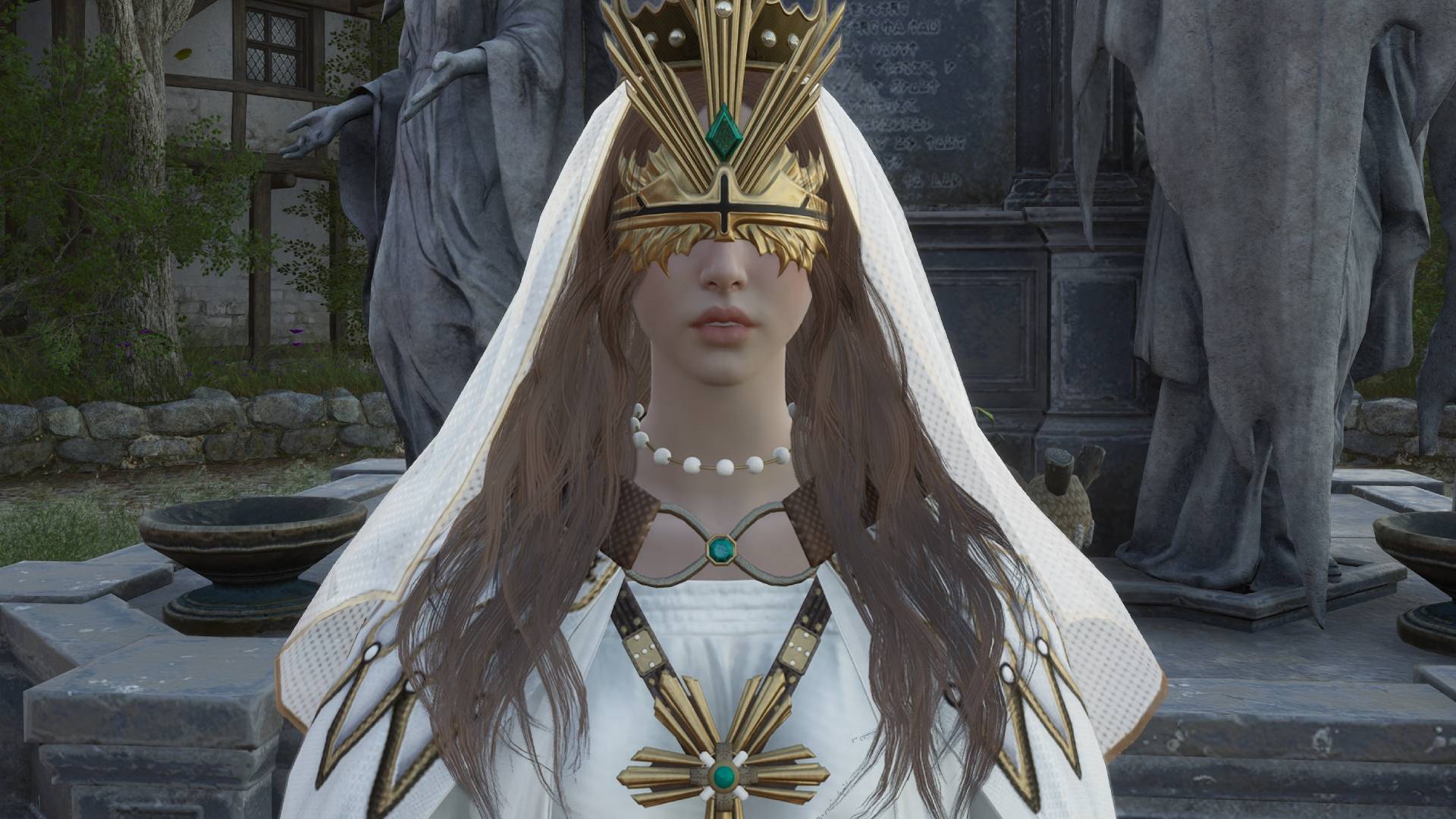
Today we are going to take a look at how you can hide your UI in Throne and Liberty. Hiding your UI in MMOs is often a popular feature that shouldn’t be missing and luckily it isn’t!
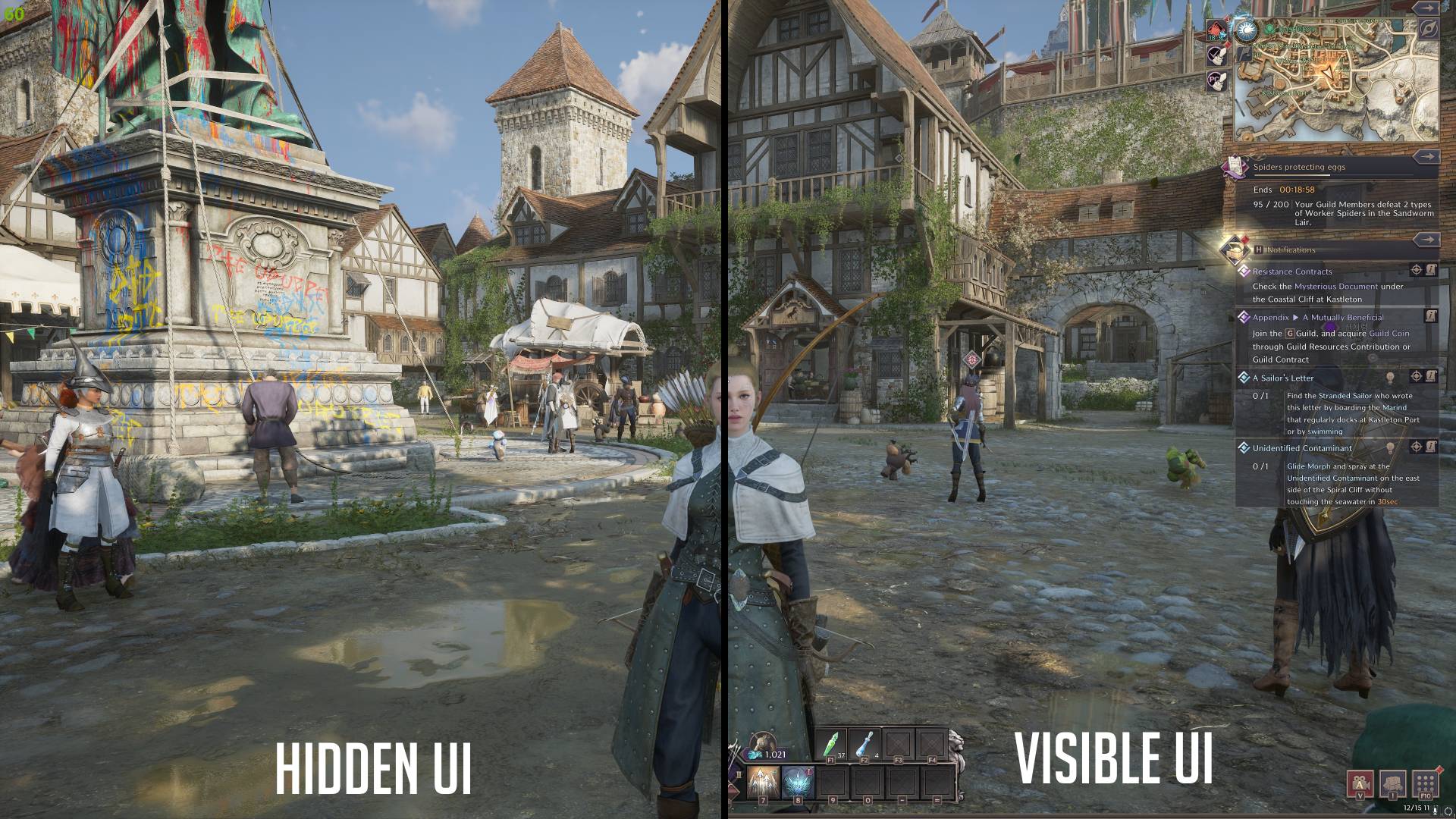
In the screenshot below you can see that on the left side the UI is hidden, whereas on the right side the UI is visible in Throne and Liberty. Of course, you shouldn’t hide your UI in combat, but if you want full immersion walking around in a city you can easily do that.
How to hide your UI in Throne and Liberty
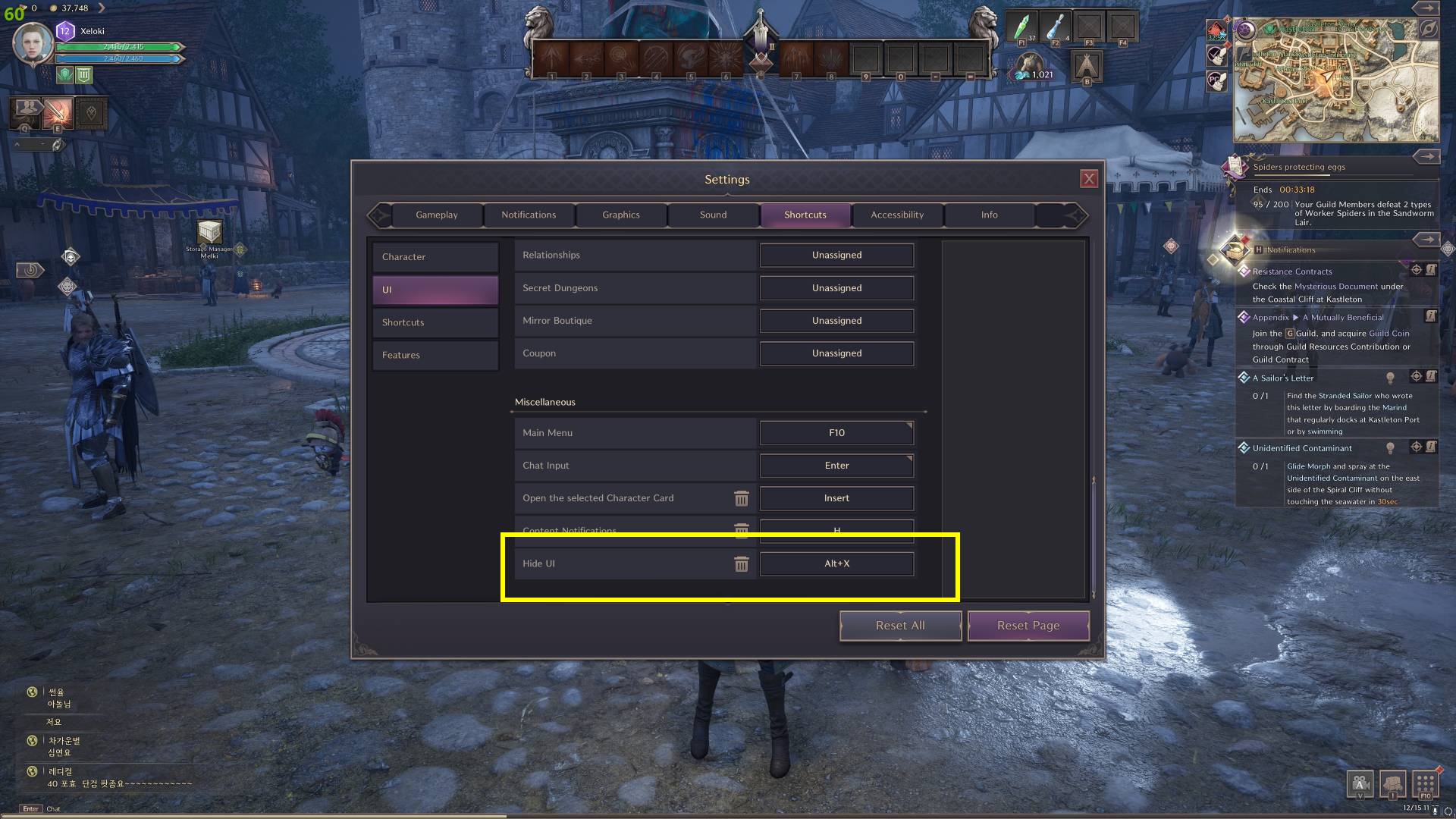
Go to Settings (O), navigate to Shortcuts, then select UI and scroll down to the bottom. There you can find the shortcut assigned to hide your UI in Throne and Liberty. For our case it was ALT+X.
How to: Settings > Shortcuts > UI > scroll to the bottom.
We hope we could help you with finding out how to hide your UI in Throne and Liberty. Throne and Liberty is a game with amazing graphics and it is worth it taking great screenshots of your surroundings and your character. Please keep in mind that you can also adjust the keybindings to whatever you want. This will also be the case for the console version of TL.
Good luck taking beautiful screenshots!
If you are looking for builds please check out our Throne and Liberty Builds Overview Page.